
This lesson is about which email address lands in Git commit metadata, and what we recommend for public work on GitHub. Start here if you only want the setup; the sections below explain why each step matters.
- Find your GitHub no-reply email on Settings → Emails. It looks like
2714362+username@users.noreply.github.com(a numeric ID,+, your username,@users.noreply.github.com). - On the same page, enable Keep my email addresses private. That reveals Block command line pushes that expose my email—turn that on too. With blocking enabled, GitHub rejects a push when the latest commit uses a verified private address on your account (until you complete step 3).
- Point Git at that no-reply address globally:
git config --global user.email "ID+username@users.noreply.github.com"Replace the placeholder with the exact address GitHub shows in step 1. Check per-repo settings too: git config user.email overrides global config inside that repository.
- If you deliberately want your real inbox in commit metadata on GitHub—for example so collaborators can email you from
git log—you can set a localgit config user.emailto a private address verified on your account. That conflicts with step 2: you must turn off Block command line pushes that expose my email for the whole account (there is no per-repository exception), and your address is back in history for any GitHub repo you push to with that config.
Later (future lessons)—but also part of our best-practice recommendations:
- Create a GPG key whose email identity is your GitHub noreply address, configure Git to sign commits, and add the public key to GitHub.
- Add a ruleset (organization or repository) that rejects unsigned commits.
- Enable vigilant mode on your account so unsigned or unverified commits show that status instead of looking fully trusted.
We explain those steps in a later lesson in this course.
With the TL;DR above, the rest of the lesson explains why we recommend that setup. We start with the problem.
Email is exposed for everyone to see
Section titled “Email is exposed for everyone to see”I enjoy my privacy and prefer to keep my email private. To show why that matters, we clone a popular open source project: ohmyzsh/ohmyzsh.
git clone https://github.com/ohmyzsh/ohmyzsh.gitcd ohmyzshAnyone who clones the repo gets the full commit history. We can read the metadata Git stored with each commit using git show. The -s flag skips the patch; --format=fuller prints Author and Committer (with dates).
git show -s --format=fuller HEAD~4I tried HEAD first, but many recent commits on this repo already use GitHub’s no-reply email—the fix from this lesson. Stepping back a few commits (HEAD~4) still shows a real address on the Author line:
commit 6010fb6260f359e71d99ba25f05f9215809b3ed2Author:     Pa***** Val***** <pao******@hotmail.it>AuthorDate: Mon Nov 9 13:36:11 2026 +0100Commit:     GitHub <noreply@github.com>CommitDate: Mon Nov 9 13:36:11 2026 +0100
    fix(mvn): complete with compsys instead of compctl (#14241)
In this write-up we redact the name and email with *. On your machine, after git clone, you see the full Author name and email—whatever was in that contributor’s git config when they made the commit.
Notice Commit is GitHub <noreply@github.com> (typical for a merged PR) while Author can still be a personal address. GitHub’s web UI does not remove the author email from Git history; it stays in the object anyone can read.
Recommendation: do not expose your email address in public commit metadata
Section titled “Recommendation: do not expose your email address in public commit metadata”Your email in a commit is not “just metadata.” It is a public, copy-pasteable identifier that rides along with the code forever.
Git does not forget. Once your real address is in history, it stays in the object database for anyone who clones or forks the repo. Deleting a branch or making the repository private on GitHub does not erase commits that already spread to other clones and mirrors. You can rewrite history in a repo you control, but you cannot take back what people already copied.
That visibility invites abuse that has nothing to do with open source itself:
- Scraping — Scripts walk public repos and collect author emails for mailing lists.
- Spam and phishing — A work or personal address tied to your public open-source activity is an easy target (“your PR was merged,” “CVE in your library”).
- Correlation — The same email can link your GitHub identity to employer accounts, gravatar, old projects, or breach dumps.
- Unwanted contact — You may be fine with issues and discussions; you may not want strangers emailing you directly because they found you in
git log.
GitHub’s profile page might hide your email, but the clone does not. git log and git show are enough. That gap is exactly what we showed with ohmyzsh.
So our recommendation is simple: for public work, do not put your real inbox in user.email. Use an address meant to be public—GitHub’s no-reply email is built for that—and turn on the settings that keep your verified email off commits when you use the website. In the next sections we configure Git and GitHub that way.
Let’s examine a few solutions to our problem.
Unused mail
Section titled “Unused mail”We could always register yet another email address and use it only for commits…
Your GitHub account can hold multiple verified addresses. The idea is simple: open a mailbox you do not care about, add it to GitHub, and set git config user.email to that address. Whatever lands in the Author line is still copied into every clone forever—scrapers do not care that it is a “junk” inbox. You accept spam and phishing there; mail from other developers can show up too, and most people just ignore it.
That trades one problem for another. You are still publishing a routable address in public Git history. You also take on another mailbox to verify and maintain. GitHub cannot verify disposable email providers—you need a real inbox you can confirm (email verification restrictions). Every address you add to your account must be verified before GitHub treats it as yours for commits on your profile.
It also fights the setup we walk through later in this lesson. If you turn on Keep my email addresses private and Block command line pushes that expose my email (the second option appears after you enable privacy), GitHub rejects pushes when the latest commit author is a private email on your account—any verified address tied to you, including a dedicated “commits only” inbox, not only your main address. With that protection on, pushing successfully means using GitHub’s supported approach in the following sections—not keeping a spare address in user.email.
Without blocking enabled, you can still push with the throwaway and keep your main inbox off commits—until a wrong user.email on another machine or in a single repo slips through. Blocking is there to catch that mistake; a throwaway inbox is not the same kind of safety net when you also want commits linked to your GitHub account.
For any public repository—code anyone can clone and read with git log—we treat this as a weak workaround.
Placing a “wrong” email
Section titled “Placing a “wrong” email”The email and name we saw in the example can be easily changed with the git config user.email "some@email.academeez" and git config user.name "Academeez Rulezzzz" (The --global flag is also important here and we will give recommendations regarding that flag later on).
Those commands will change the commit metadata.
So the question is, if I don’t want my mail exposed I could simply set the name and email to be false values.
So you could set git config user.email "not-my@real.email"
Few problems with that approach…
Commits are connected to profiles
Section titled “Commits are connected to profiles”GitHub—and other sites that host Git repositories—link a commit to a user profile by matching the Author email in commit metadata to a verified email on a GitHub account—the address you signed up with or any address you added under Settings → Emails. GitHub can also attribute people listed in Co-authored-by: trailers in the commit message; see Creating a commit with multiple authors.
Here is a simple experiment to see what happens when git config user.email does not match what you expect. We use the remote repository Nerdeez/github-noreply-email; you can inspect the commits there.
For the first commit we use a mailbox connected to my profile (a dedicated address for this lesson). I created a new folder, ran git init, and pointed origin at that repository on GitHub.
mkdir github-noreply-emailcd github-noreply-emailgit initgit remote add origin https://github.com/Nerdeez/github-noreply-email.gitgit branch -M mainOur first commit for this repository uses a dedicated mailbox connected to my GitHub account—an address I do not mind exposing for this demo (I removed it from the account after the lesson). I set local Git to that address:
git config user.email "*****@*****.com"We then created a README.md with some text and pushed our first commit to produce a normal commit with an exposed email (which we do not recommend for everyday work).
We can now examine the remote commits and we will see one commit that is created with our user profile:
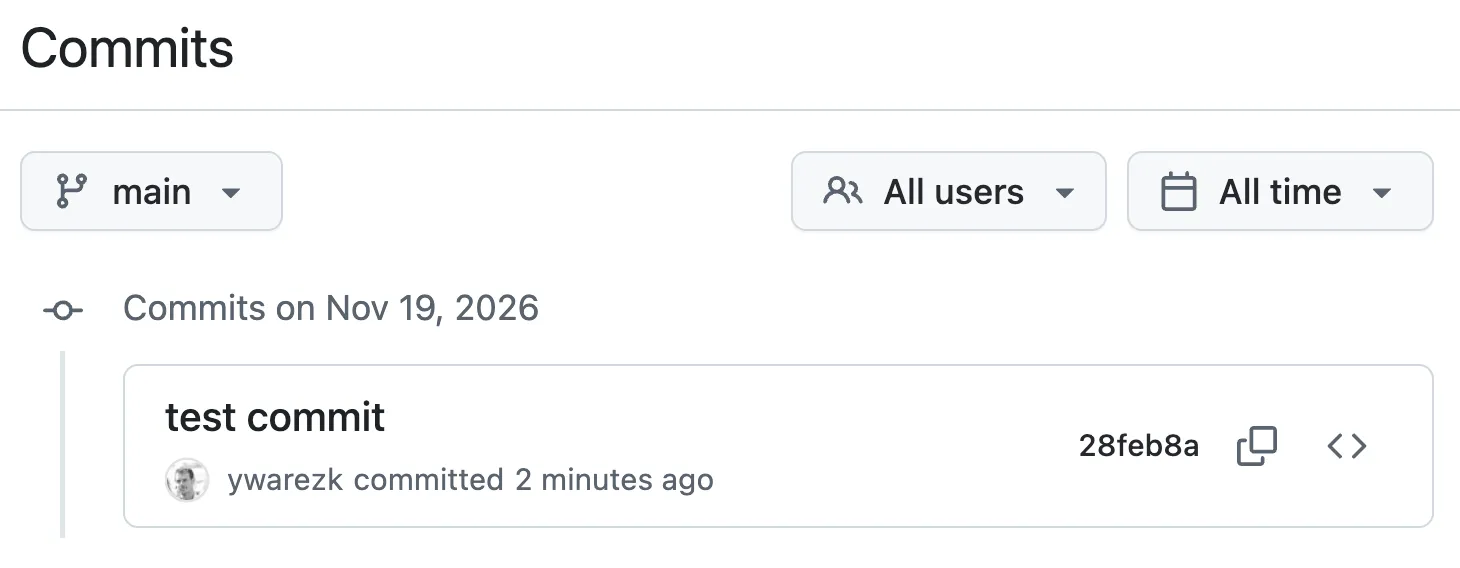
Notice in the image that my GitHub avatar appears: GitHub matched the author email to my account.
We can also open Contributors and see my profile listed for this repository:
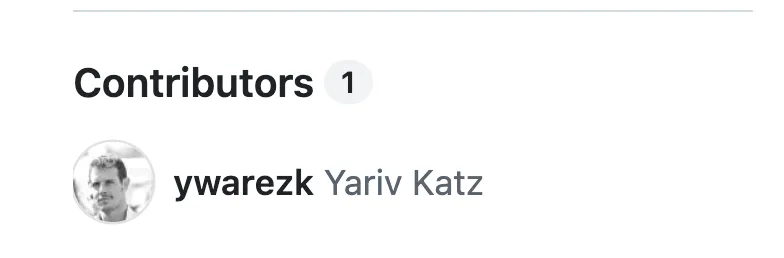
Now let’s see what happens if I give a mail that is not connected to anything:
git config user.email "non-existing-address@academeez.com"We changed README.md again, committed, and pushed. The new commit is not linked to any GitHub profile—the author email is not on anyone’s account.
The push still succeeded, which can feel harmless. Later lessons cover commit signing: GitHub shows a Verified badge only when the signature checks out, signing is set up, and the signing key is on your account. You can still create commits with a random author email, but they stay unsigned (or Unverified if you sign with a key that does not match that email). If the repository later requires signed commits—rulesets can enforce that—those pushes will be rejected—not because Git forbids the email, but because the commit will not pass the rule.
In this experiment the Contributors list did not change; GitHub still showed only one contributor.
One more experiment: we misbehave a bit and set user.email to an address we know belongs to someone else’s GitHub account—we took it from a contributor in ohmyzsh (you can lift author emails from public git log output on many projects).
git config user.email "existing-profile@but-not.mine"We create another commit and push. On the commits page the UI may attribute the commit to their profile—it can look like that person contributed:
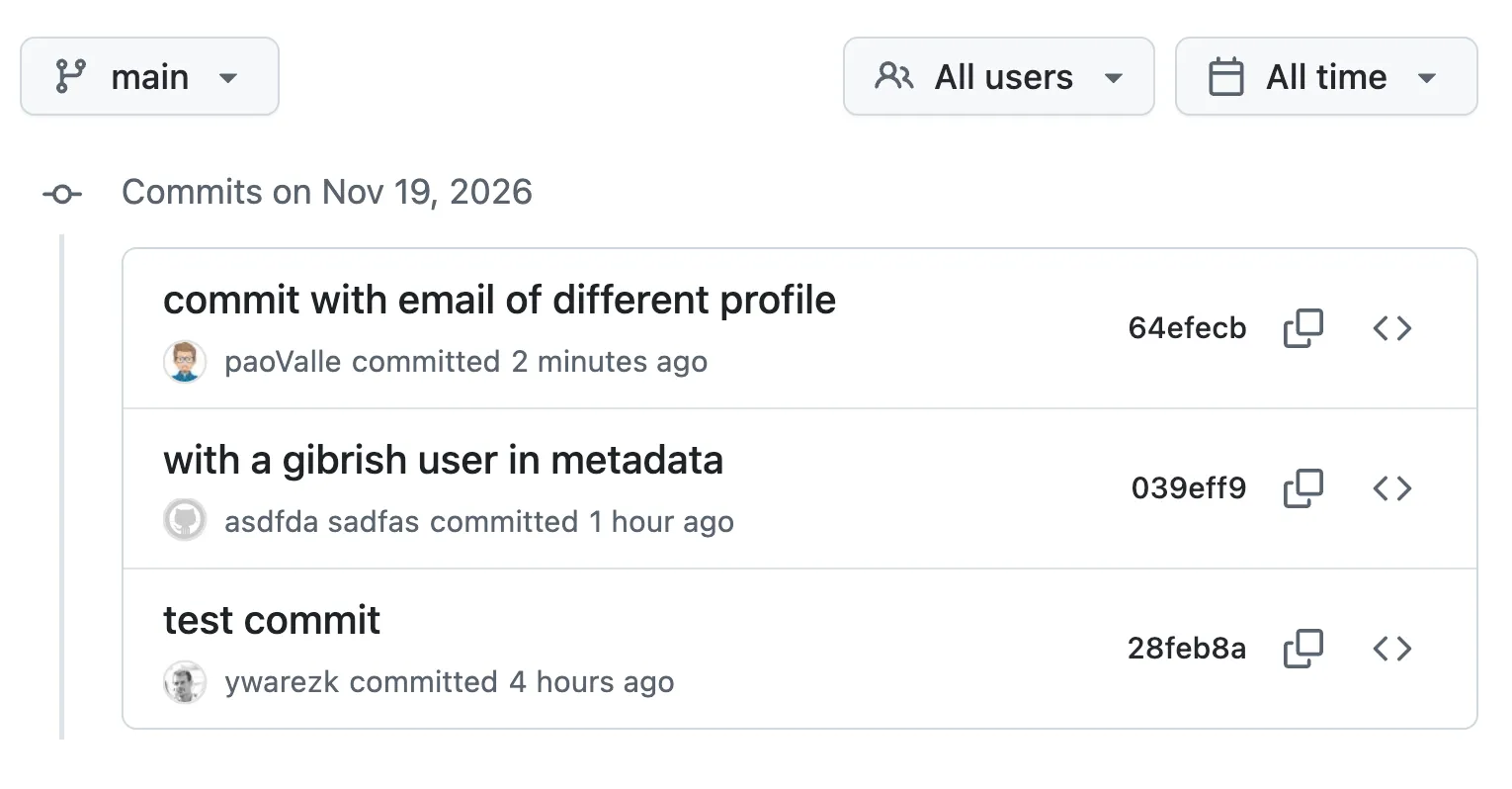
That happens when the author email matches their account; it does not always add them everywhere GitHub surfaces contributors. That does not mean they logged in or approved the push—you still pushed with your credentials; only the metadata claims to be them. (git config user.name is just as easy to fake.)
This is why we care about signing commits, branch rules that require verified signatures, and—for your own account—vigilant mode, which marks commits that are unsigned or not fully verified instead of hiding the gap:
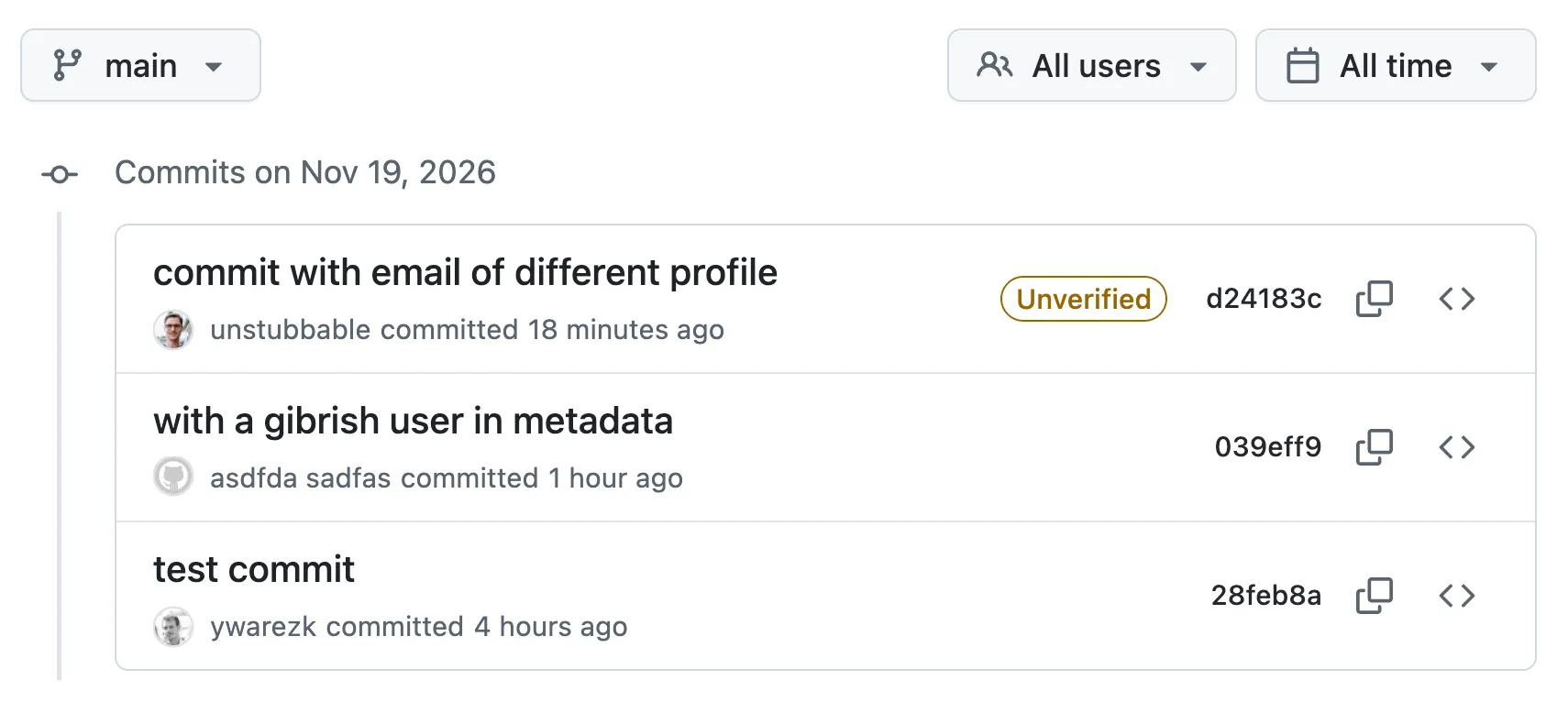
Signing and vigilant mode deserve their own lesson. For now: treat author name and email in Git as claims anyone with push access can forge—do not trust a commit just because GitHub shows an avatar unless it carries a Verified signature you expect (signing set up and the key on your account).
Also notice what Contributors may show for our repository now:
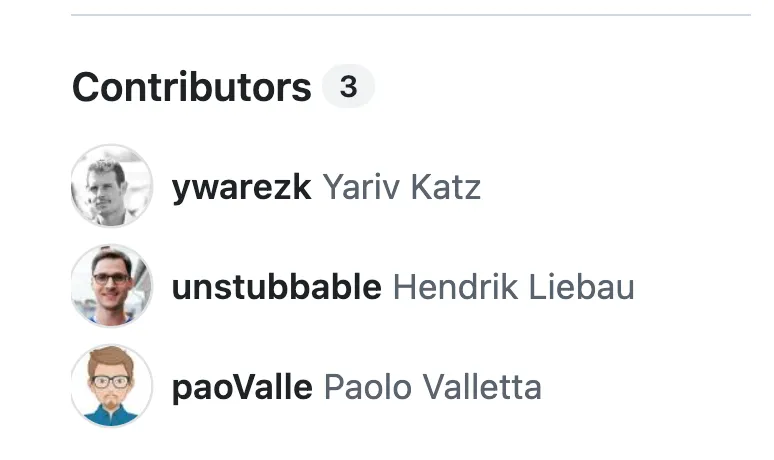
In our demo, playing with git config user.email pushed the Contributors count to 3 on that repo—what you see can differ, and GitHub may not treat every forged-author commit as a new contributor in every view.
GitHub private email
Section titled “GitHub private email”Let’s go back to the email settings at Settings → Emails. At the bottom of the screen there is an interesting option we recommend turning on: Keep my email addresses private.
The explanation on this option (quoted from GitHub):
We’ll remove your public profile email and use your GitHub no-reply address (
ID+username@users.noreply.github.com) when performing web-based Git operations (e.g. edits and merges) and sending email on your behalf. If you want command line Git operations to use your private email you must set your email in Git.Previously authored commits associated with a public email will remain public.
On that same page GitHub shows your account’s noreply address—the special ID+username@users.noreply.github.com mail GitHub provides so commits can link to your profile without exposing a real inbox. We recommend copying the exact address from Settings → Emails and setting it in git config user.email for command-line work (step 3 in the TL;DR). GitHub applies it for you on the website when privacy is on; your local Git does not switch unless you configure it.
Web-based operations are commit changes you make on the website—popular examples are merging a pull request or editing a file in the browser. In those cases, new commits use your GitHub noreply email. That setting does not change commits you push from your computer; those still use the address from git config user.email.
When you turn on Keep my email addresses private, another option appears. We recommend turning that on too: Block command line pushes that expose my email. GitHub describes it like this:
When you push to GitHub, we’ll check the most recent commit. If the author email on that commit is a private email on your GitHub account, we will block the push and warn you about exposing your private email.
This is extra protection: GitHub blocks the push when the author email on the commit it checks is a verified address on your account that you are trying to keep private—not your noreply address. Treat it as a safety net when you forget to fix user.email, not something that rewrites old history. Blocking protects your verified emails from that kind of mistake; it does not protect the repository from forged author metadata—that is what signing, rulesets, and vigilant mode are for.
That check applies to the Author email on the commit GitHub inspects only—not to every address in Co-authored-by: trailers. If you list co-authors, use noreply or other addresses you intend to expose there too; see Creating a commit with multiple authors.
Another extra protection—we will cover this in a future lesson—is signed commits. Verified on GitHub means the signature checks out and the key is on your account; a later lesson covers GitHub’s email and key matching rules in full. A GPG key is tied to an email address; we will create one for your GitHub noreply address, turn on signing in git config, and use rules on the remote so unsigned or Unverified commits cannot land. That proves the commit came from you and gives you another check that commit metadata uses the noreply GitHub mail—not a verified private address by mistake.
In some cases—personally, it has not happened to me—you may want a verified address on your account in commit metadata. For example, you contribute to a private repository and maintainers ask you to leave a reachable email for questions about a certain commit. Then you set git config user.email to that address and turn off Block command line pushes that expose my email for the whole account (there is no per-repository exception), as we noted in the TL;DR.
If you keep the recommended settings turned on, you still need to adjust Git before you push—otherwise your next push to the remote might be rejected.
user.email configuration
Section titled “user.email configuration”As mentioned earlier, GitHub matches the Author email in commit metadata, and Co-authored-by: trailers in the message, to accounts (Creating a commit with multiple authors)—so one commit can connect to more than one profile when co-authors are listed.
The GitHub noreply address—the ID+username@users.noreply.github.com form on Settings → Emails—is tied to your profile too. If you push with git config user.email set to that address, you stay associated with the commit while your real inbox stays hidden from nosy snooping. With Block command line pushes that expose my email on, GitHub still allows pushes when the Author line uses noreply—that is why we recommend it as your global default:
git config --global user.email "ID+username@users.noreply.github.com"--global makes that address the default that applies to every repository on this machine. You can override it in one repo by cd into that project and setting a local value (no --global):
cd git-repo-with-different-emailgit config user.email "some-other@mail-then.default"If that local address is a verified email on your GitHub account, you will have to turn off Block command line pushes that expose my email on Settings → Emails for the whole account—as in step 4 of the TL;DR.
Summary
Section titled “Summary”Every commit stores Author name and email in Git history. Anyone who clones a public repository can read them with git log or git show—even when GitHub’s website hides your address. A disposable inbox or a fake user.email are weak fixes: you still leak a routable address, fight GitHub’s privacy settings, or let commit metadata impersonate another profile without real authentication.
Our recommendation for public work on GitHub:
- Copy your GitHub no-reply address from Settings → Emails (
ID+username@users.noreply.github.com). - Turn on Keep my email addresses private, then Block command line pushes that expose my email.
- Set
git config --global user.emailto that noreply address (override per repo only when you mean to).
Optional: if you deliberately want a verified address on your account in metadata—for example so maintainers can email you from git log—use a local git config user.email and turn blocking off for the whole account; your inbox is back in history for any push that uses that config.
Also part of our best-practice recommendations (covered in later lessons in this course):
- Create a GPG key whose email identity is your GitHub noreply address, configure Git to sign commits, and add the public key to GitHub.
- Add a ruleset (organization or repository) that rejects unsigned commits.
- Enable vigilant mode so unsigned or unverified commits are visible instead of looking fully trusted.
Noreply plus privacy and blocking gives you profile-linked commits without exposing your real inbox. Signing, rulesets, and vigilant mode close the gap between “metadata says who you are” and “we can trust who actually made the commit.”